Have you ever opened the Messages app on your iPhone and noticed that some conversations appear in green instead of blue? 🤔
Many iPhone users wonder if green messages mean they’ve been blocked, if something is wrong with their phone, or if iMessage has stopped working. The good news is that green messages usually have a simple explanation. 📱
In this guide, you’ll learn why iPhone messages turn green, the difference between green and blue texts, the most common causes, and practical solutions to switch back to iMessage when possible. ✅ Let’s clear up the confusion once and for all!
What Do Green Messages Mean on iPhone?
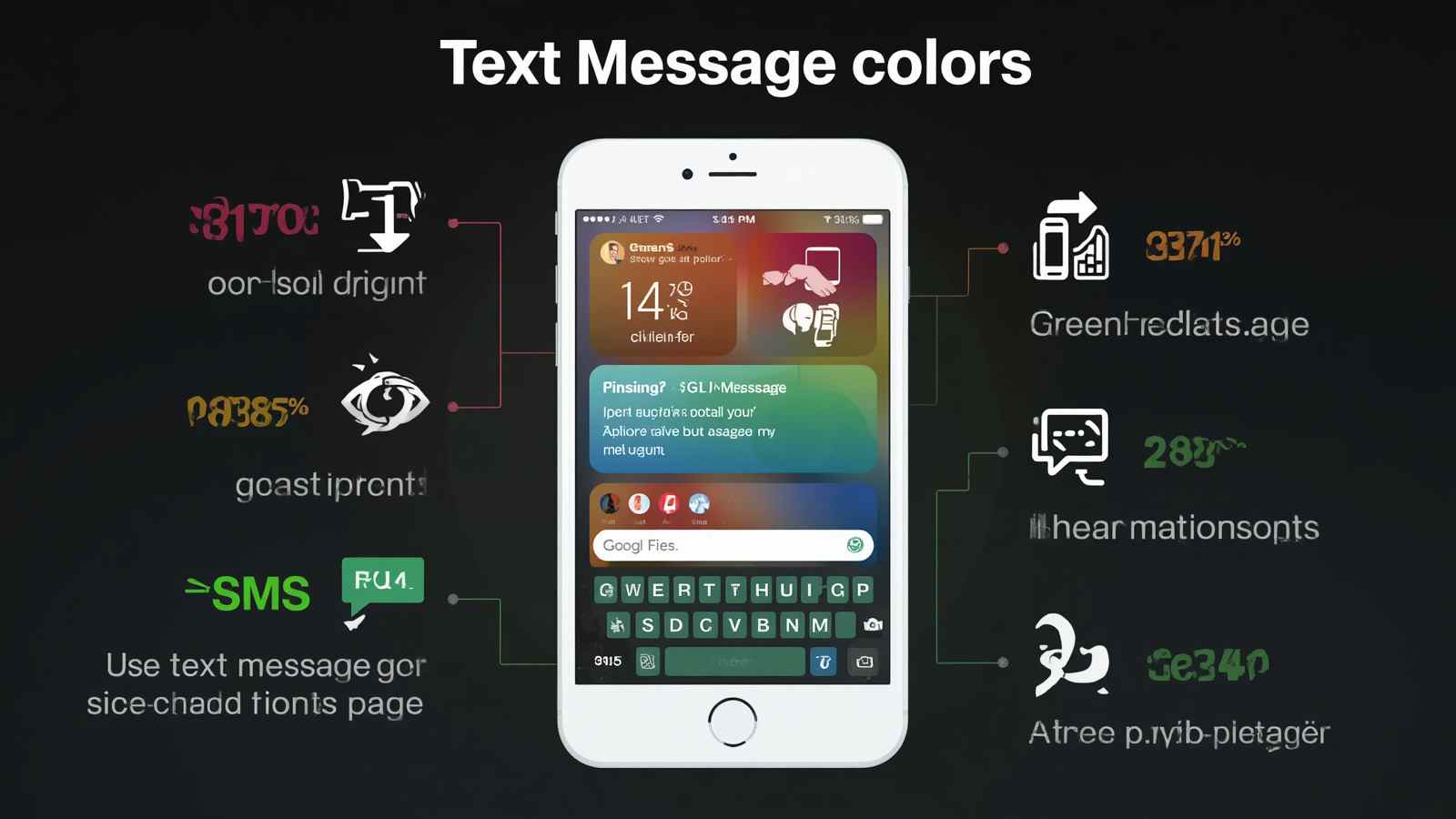
Green messages on iPhone mean your message was sent using SMS or MMS instead of Apple’s iMessage system.
When your message appears in a green bubble, your iPhone is communicating through your mobile carrier rather than Apple’s encrypted messaging servers.
Blue vs Green Messages Explained
Blue Messages
Blue bubbles mean:
- You are using iMessage
- Both users have Apple devices
- Internet connection is active
- Messages are encrypted
- Advanced features are available
These features include:
- Read receipts
- Typing indicators
- High-quality media sharing
- Message reactions
- Editing and unsending messages
- Better group chats
Green Messages
Green bubbles mean:
- SMS or MMS is being used
- Internet may be unavailable
- Recipient may not use Apple devices
- iMessage may be disabled
- Carrier texting network is active
Green messages are not necessarily bad. In many cases, they are completely normal.
The Most Common Reasons iPhone Messages Turn Green
There are several reasons why your iPhone messages appear green instead of blue. Some are temporary, while others are permanent based on the recipient’s device.
The Recipient Is Using Android
The most common reason messages are green is because the other person uses an Android phone.
Apple’s iMessage only works between Apple devices such as:
- iPhone
- iPad
- Mac
- Apple Watch
If you text someone using Samsung, Google Pixel, Xiaomi, Huawei, or another Android device, your message automatically switches to SMS/MMS.
Why This Happens
Apple’s iMessage system is exclusive to Apple devices. Android devices use different messaging technologies, including:
- SMS
- MMS
- RCS messaging
Because these systems are different, your iPhone sends the message through your mobile carrier.
Is This Normal?
Yes. This is completely normal and does not indicate a problem.
iMessage Is Disabled on Your iPhone
If iMessage is turned off, every message you send becomes green automatically.
How to Check iMessage Status
Follow these steps:
Step 1
Open Settings.
Step 2
Tap Messages.
Step 3
Look for iMessage.
Step 4
Ensure the toggle is turned on.
If the switch is gray, iMessage is disabled.
Internet Connection Problems
iMessage requires internet access.
Without Wi-Fi or mobile data, your iPhone cannot connect to Apple’s messaging servers.
When this happens, your iPhone falls back to SMS and sends green messages.
Common Internet Problems
These include:
- Weak Wi-Fi
- Airplane mode enabled
- Data outage
- VPN conflicts
- Poor signal
- Carrier instability
Quick Fixes
Try:
- Turning Wi-Fi off and on
- Restarting your iPhone
- Disabling Airplane mode
- Switching to mobile data
- Resetting network settings
Apple’s iMessage Servers Are Down
Sometimes the issue is not your iPhone.
Apple’s servers occasionally experience outages that prevent iMessage from functioning correctly.
During outages:
- Messages may turn green
- Delivery may fail
- Group chats may stop working
- Photos may not send
Signs of a Server Outage
You may notice:
- Multiple conversations turning green
- Delayed delivery
- “Not Delivered” errors
- Problems affecting many users simultaneously
Usually, Apple resolves server issues quickly.
Why Messages Turn Green for One Person Only
Many users notice that only one contact suddenly receives green messages.
This situation has several possible explanations.
The Contact Switched to Android
If someone recently moved from iPhone to Android, your messages may remain green permanently.
This is extremely common in 2026 as more users switch between operating systems.
The Contact Disabled iMessage
Some users turn off iMessage intentionally.
Reasons include:
- Privacy concerns
- Battery optimization
- Carrier preferences
- Troubleshooting
- International travel
When this happens, your iPhone sends SMS instead.
The Contact Has No Internet Access
If the recipient temporarily loses internet access, iMessage may fail and revert to SMS.
This often happens during:
- Flights
- Remote travel
- Underground locations
- Data outages
Your Contact Number Is Incorrect
If you accidentally text a non-iMessage number, messages appear green.
Examples include:
- Old phone numbers
- Landlines
- Temporary SIM numbers
- Secondary devices
Always verify the recipient’s number.
Are Green Messages Bad?
Green messages are not inherently bad.
However, they do have limitations compared to iMessage.
Features Missing in Green Messages
SMS/MMS messages lack several advanced features.
No End-to-End Encryption
Unlike iMessage, standard SMS is not fully encrypted.
Lower Media Quality
Photos and videos often appear compressed.
No Read Receipts
You cannot see whether the recipient read your message.
No Typing Indicators
You cannot see when someone is typing.
Limited Group Chat Features
SMS group chats are less advanced and may behave inconsistently.
How to Fix Green Messages on iPhone
If green messages are appearing unexpectedly, several troubleshooting steps can help restore iMessage.
Restart Your iPhone
A simple restart fixes many messaging problems.
Restart Steps
iPhone With Face ID
- Hold Volume and Power buttons
- Slide to power off
- Restart after 30 seconds
Older iPhones
- Hold Power button
- Slide to turn off
- Restart device
Check Apple ID Settings
Your Apple ID controls iMessage activation.
Steps
Step 1
Open Settings.
Step 2
Tap your Apple ID profile.
Step 3
Select Messages.
Step 4
Tap Send & Receive.
Step 5
Confirm your number and email are active.
Re-enable iMessage
Turning iMessage off and back on often resolves glitches.
Instructions
- Open Settings
- Tap Messages
- Disable iMessage
- Wait 60 seconds
- Re-enable iMessage
Activation may take several minutes.
Reset Network Settings
Network problems frequently cause green messages.
Warning
This removes:
- Saved Wi-Fi passwords
- Bluetooth settings
- VPN configurations
Reset Process
Step 1
Open Settings.
Step 2
Tap General.
Step 3
Select Transfer or Reset iPhone.
Step 4
Tap Reset.
Step 5
Choose Reset Network Settings.
Why Group Messages Turn Green
Group chats behave differently depending on the devices involved.
Mixed Device Groups
If even one person in the group uses Android, the entire conversation may become green.
This occurs because SMS/MMS becomes the common messaging format.
MMS Messaging Disabled
Group messaging requires MMS.
Enable MMS
Go to:
Settings → Messages → MMS Messaging
Ensure it is enabled.
Does Green Mean Blocked on iPhone?
Not necessarily.
Many people incorrectly believe green messages always indicate blocking.
That is false.
Possible Reasons Besides Blocking
Green messages may simply mean:
- SMS is active
- Internet is unavailable
- iMessage is disabled
- Android device is involved
Signs You May Be Blocked
Blocking is difficult to confirm, but possible indicators include:
- No delivery confirmation
- Calls going to voicemail immediately
- Messages staying green permanently
- Sudden communication changes
However, none of these alone prove blocking.
Why Are My Messages Green After Updating iPhone?
Software updates occasionally affect messaging systems.
Common Post-Update Issues
After iOS updates, users sometimes experience:
- iMessage deactivation
- Carrier reset issues
- Apple ID synchronization errors
- SIM registration problems
How to Fix Update-Related Problems
Try:
- Restarting the phone
- Re-signing into Apple ID
- Updating carrier settings
- Resetting network settings
Green Messages and International Travel
Travel frequently affects iMessage behavior.
Why This Happens
During international travel:
- Data roaming may be disabled
- Local SIM cards may interfere
- Carrier systems may change
Your iPhone may temporarily switch to SMS.
Best Travel Messaging Tips
To maintain iMessage:
- Use reliable Wi-Fi
- Enable roaming if needed
- Keep Apple ID active
- Avoid removing primary SIM unnecessarily
Can Green Messages Become Blue Again?
Yes.
If the underlying issue is fixed, messages can switch back to blue automatically.
Situations Where This Happens
Examples include:
- Internet reconnects
- iMessage reactivates
- Recipient returns to iPhone
- Apple servers recover
No manual conversion is usually required.
The Psychology Behind Blue and Green Messages
Interestingly, message colors now influence modern communication behavior.
In 2026, studies of smartphone users suggest that people often associate blue bubbles with:
- Premium communication
- Better social status
- Reliability
- Faster responses
Meanwhile, green bubbles are sometimes unfairly associated with:
- Android users
- Lower media quality
- Reduced social engagement
However, messaging ecosystems are evolving rapidly.
How Messaging Changed in 2026
The messaging industry has evolved significantly.
Rise of Cross-Platform Messaging
Modern systems increasingly support interoperability between devices.
This includes:
- Rich Communication Services (RCS)
- Enhanced media support
- Better Android-iPhone compatibility
Privacy Awareness Increased
Users now care more about:
- Encryption
- Metadata privacy
- Message tracking
- Cloud backups
This has changed how messaging apps compete.
Multiple Messaging Apps Dominate
Many users now combine:
- iMessage
- Telegram
- Signal
- Messenger
Green messages matter less than they did years ago because communication now happens across multiple platforms.
iPhone Green Message Myths
There are many misconceptions about green messages.
Myth 1: Green Means You Are Blocked
False.
Green messages alone do not confirm blocking.
Myth 2: Green Messages Are Dangerous
False.
SMS is older technology but generally safe for normal conversations.
Myth 3: Green Messages Mean Your iPhone Is Broken
False.
Most green-message situations are normal.
Myth 4: Blue Messages Are Always Better
Not necessarily.
Some third-party apps offer stronger privacy and better features than iMessage.
How to Improve Your Messaging Experience
Modern messaging quality depends on settings, connectivity, and app choice.
Keep iOS Updated
Software updates improve:
- Stability
- Security
- Messaging compatibility
Maintain Strong Internet Access
Reliable internet helps avoid SMS fallback.
Verify Apple ID Configuration
Ensure your:
- Phone number
- Device registration
are properly connected.
Use Wi-Fi Calling
Wi-Fi Calling improves communication quality in weak-signal areas.
When You Should Contact Apple Support
Most green-message problems are temporary.
However, contact support if:
- iMessage never activates
- Activation errors persist
- Messages consistently fail
- Your number cannot register
- SIM issues continue
Persistent issues may involve:
- Carrier restrictions
- Apple ID verification
- Hardware problems
Advanced iPhone Messaging Troubleshooting
Experienced users sometimes need deeper troubleshooting methods.
Check Carrier Settings Updates
Carriers regularly release compatibility updates.
Steps
- Open Settings
- Tap General
- Tap About
If an update appears, install it.
Remove and Reinsert SIM Card
SIM issues occasionally disrupt messaging services.
Power off your iPhone before removing the SIM.
Verify Date and Time Settings
Incorrect time settings can interfere with iMessage activation.
Enable:
Settings → General → Date & Time → Set Automatically
The Future of iPhone Messaging
Messaging technology is evolving rapidly beyond traditional SMS.
Smarter AI-Assisted Messaging
Modern messaging apps now integrate:
- Smart replies
- AI summaries
- Voice transcription
- Translation systems
Enhanced Cross-Platform Support
Future systems may reduce differences between Android and iPhone messaging experiences.
Increased Encryption Standards
Privacy-focused messaging is becoming more important worldwide.
Users increasingly prioritize secure communication over bubble colors.
Final Thoughts
Green messages on iPhone are usually simple to understand and fix. In most cases, they appear because your message was sent through SMS rather than iMessage.
The most common reasons include:
- Messaging Android users
- Internet connection issues
- Disabled iMessage
- Apple server outages
- Carrier-related problems
While green bubbles lack some advanced iMessage features, they remain a reliable communication method.
As messaging technology continues evolving in 2026, the distinction between blue and green bubbles is becoming less important than overall communication quality, privacy, and convenience.
Understanding how iPhone messaging works allows you to troubleshoot problems quickly, communicate more effectively, and avoid unnecessary confusion when message colors suddenly change.
Frequently Asked Questions
Why are my iPhone messages green to another iPhone?
This usually happens because iMessage is disabled, internet access is unavailable, or Apple’s servers are temporarily down.
Can I force green messages to become blue?
Only if iMessage becomes available again and both devices support Apple’s messaging system.
Are green messages less secure?
Yes. Standard SMS messages are generally less secure than encrypted iMessages.
Do green messages cost money?
Depending on your mobile plan, SMS/MMS charges may apply.
Why did my blue messages suddenly turn green?
Possible causes include:
- Internet issues
- Carrier problems
- Recipient disabling iMessage
- Apple server outages
10 Helpful Examples of Green Message Situations
Example 1: Traveling Abroad
You connect to a weak hotel Wi-Fi network, and your iPhone switches messages to SMS automatically.
Example 2: Texting an Android User
Your coworker uses Samsung, so all messages appear green permanently.
Example 3: Temporary Apple Server Outage
Apple’s servers experience downtime, causing millions of iMessages to revert temporarily.
Example 4: Airplane Mode Accidentally Enabled
You accidentally activate Airplane mode, disabling internet connectivity.
Example 5: SIM Card Problem
A damaged SIM temporarily prevents proper iMessage activation.
Example 6: iOS Update Glitch
A recent software update resets messaging settings unexpectedly.
Example 7: Weak Basement Signal
Poor underground connectivity forces your phone to use SMS.
Example 8: New Phone Activation Delay
Your new iPhone requires time to activate iMessage properly.
Example 9: Contact Switched Devices
Your friend changed from iPhone to Android without warning.
Example 10: Data Plan Expired
Mobile data stopped working after exceeding your carrier limit.

Kian Novelmind ek insightful aur imaginative writer hain, aur similessons.com ke dedicated content creator bhi hain—jahan woh students, writers aur readers ke liye engaging similes, metaphors aur creative writing guides tayyar karte hain. Unka writing style modern, clear aur deeply expressive hota hai, jo har reader ko inspire karta hai. Kian ka mission hai writing ko simple, meaningful aur enjoyable banana, taake har reader apni creative thinking ko confidently explore kar sake.